
All Sales
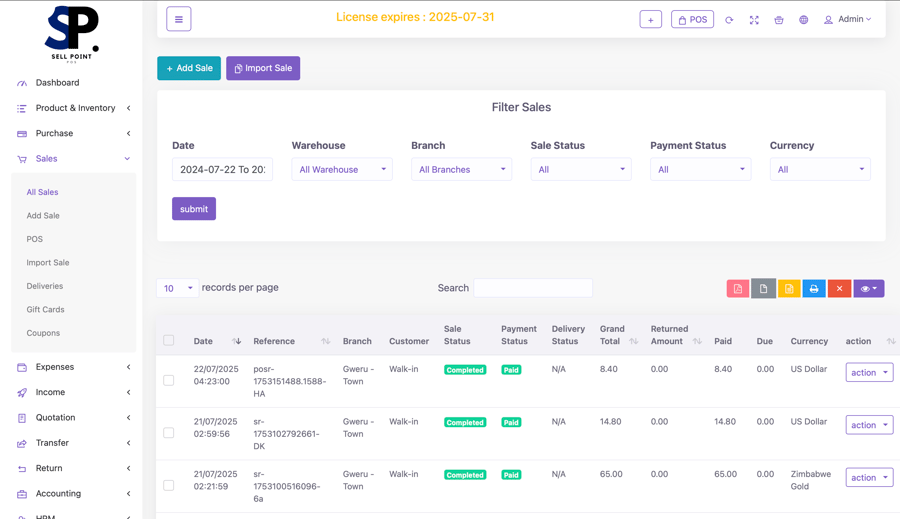
How to Import Sales?
This page is designed for bulk importing sales data to streamline the process of updating sales records. It simplifies adding multiple sales transactions into the system in one action.
How to import sales?
- Select the Customer: Choose the customer who made the purchase.
- Select the Warehouse: Choose the warehouse where the sold products are stored.
- Select the Sales Status:
- Completed: The sale has been finalized, and the sale amount has been paid.
- Pending: The sale has been recorded, but the amount is yet to be paid.
- Attach Sales Document: Upload any relevant sales document (invoice, order confirmation).
- Upload Sales Data: Import the file (CSV or Excel) containing sales records, ensuring the columns are correctly formatted (SKU, quantity, price).
- Select the Tax Type: Choose the type of tax applied to the sales.
- Enter Discounts: Input any discount applied to the overall sales order.
- Enter Shipping Costs: Record the shipping cost associated with the sales order.
- Leave Notes: Add any remarks or notes related to the sales order.
- Submit: Click the 'Submit' button to finalize and start importing sales.
Deliveries
The page is dedicated to tracking and managing the delivery of products to customers. It provides an organized view of all outbound deliveries, ensuring efficient logistics and customer satisfaction.
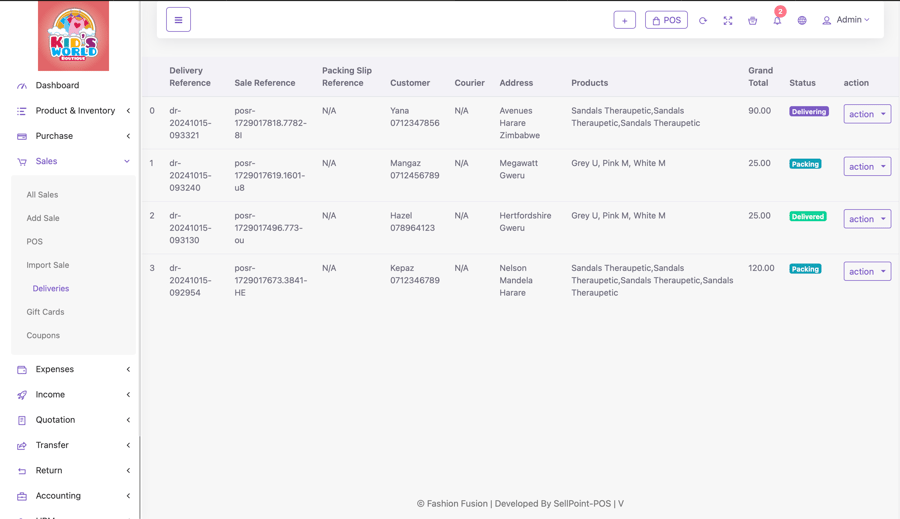
Key components of the page include:
- Product List: Displays all products with essential details such as product name, SKU/code, category, quantity in stock, price, and status (active/inactive).
- Search: Search for products by name, code to find specific products quickly.
- Stock Level Indicators: Shows current inventory levels for each product, with alerts for low or out-of-stock items to assist in restocking decisions.
- Edit or Delete Products: Modify details of existing products or remove products that are discontinued.
- Import/Export Data: Import products from an external file or export product data for reporting, analysis, or integration with other systems.
How to add deliveries?
- Complete a sale to your customer.
- In the All Sales page, select on the action ▼ dropdown and select ‘Add delivery’ option.( a delivery reference is created automatically by the system.)
- Select the delivery status.
- Packaging: If you are still wrapping/ packing the order.
- Delivering: If the order is already on route to the customer.
- Delivered: If the order has already arrived to your customer.
- Select the courier used when delivering the order.(company name)
- Enter the name of the individual(from the courier) who delivered the order.
- Enter the name of the person who received the order.(enter when status is delivered)
- Add any relevant attachments for this delivery.
- Enter the delivery address.
- Enter any relevant notes for this delivery.
Gift Cards
This page helps streamline gift card management, ensuring easy creation, tracking, and redemption for customers.
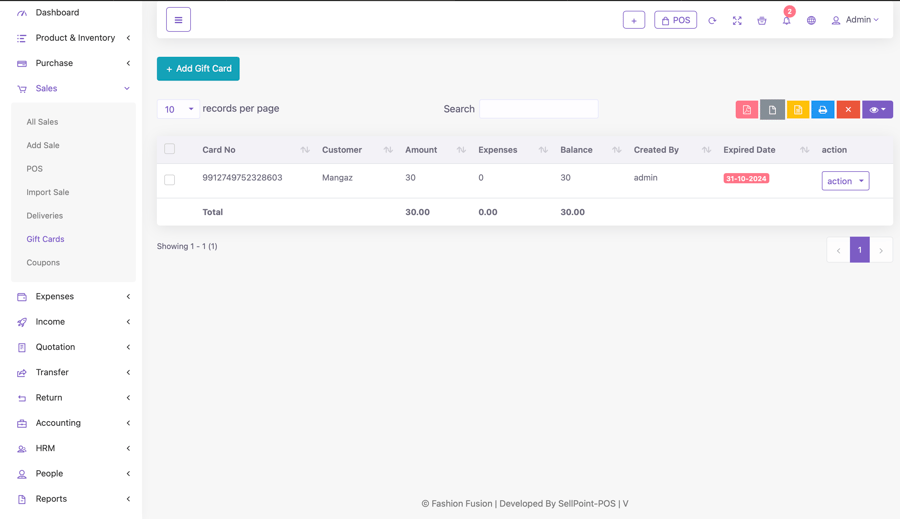
Key components of the page include:
- Gift Card List: Displays all active and expired gift cards with card number, balance, and expiration date etc.,
- Create New Gift Card: Generate new gift cards by setting the amount, expiration date, and card number, customer name.
- Redemption Status: Track whether a gift card has been fully or partially redeemed.
- Search: Tools to search for specific gift cards by card number, customer etc.,
- Export Data: Export gift card data for record-keeping and analysis.
Coupons
The page provides a comprehensive view of all products available within the system. It allows businesses to manage, track, and update product details in one centralized location, supporting efficient inventory and sales management.
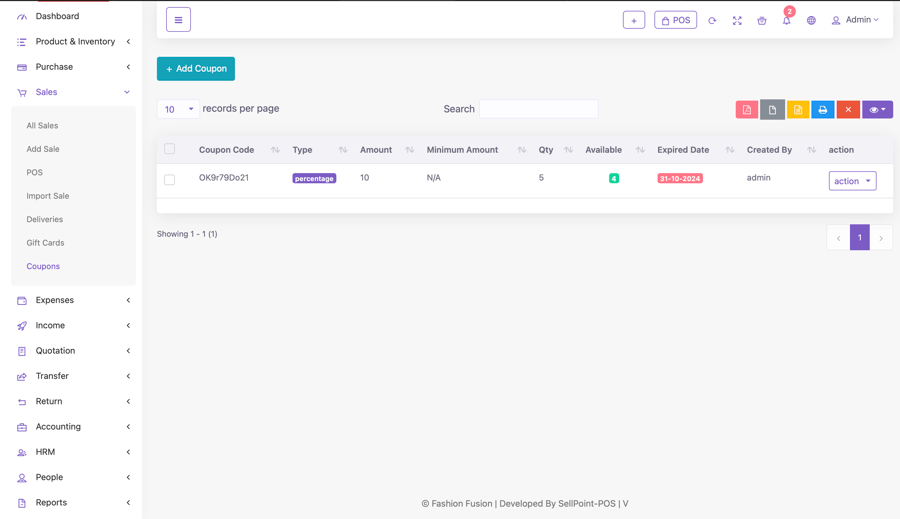
Key components of the page include:
- Product List: Displays all products with essential details such as product name, SKU/code, category, quantity in stock, price, and status (active/inactive).
- Search: Search for products by name, code to find specific products quickly.
- Stock Level Indicators: Shows current inventory levels for each product, with alerts for low or out-of-stock items to assist in restocking decisions.
- Edit or Delete Products: Modify details of existing products or remove products that are discontinued.
- Import/Export Data: Import products from an external file or export product data for reporting, analysis, or integration with other systems.