
Main
The front POS is the primary interface which will be used by cashiers or anyone handling customer transactions. Our front POS interface is designed for fast and efficient use, making it easy to serve customers and complete transactions smoothly.
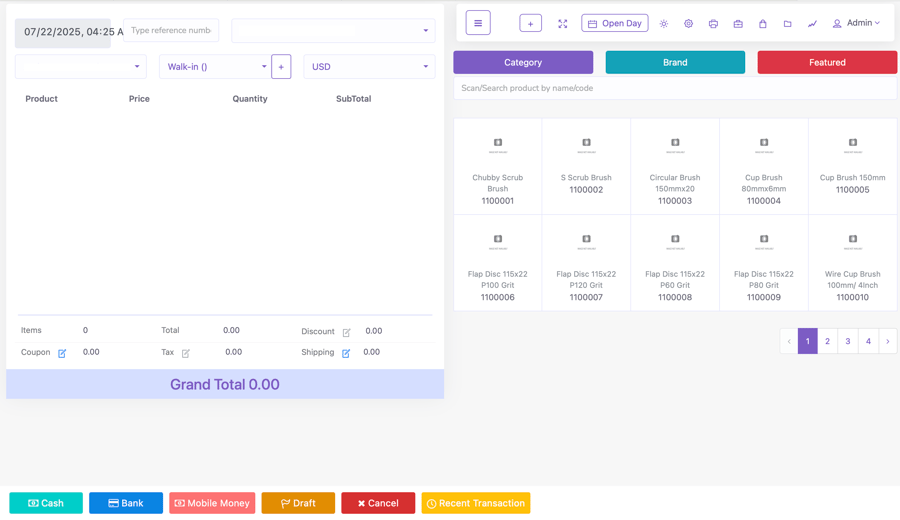
Key components of the page include:
- Date & Time: Located at the top-left, indicating when the transaction is being created.
- Reference Number Field: An input field for typing a reference number for the transaction.
- Warehouse Selection: Allows you to select the warehouse where the sale is happening. For shop owners and admins, you can switch between warehouses.
- Customer Information: There’s a dropdown for selecting or adding a customer (e.g., "Walk-in" as a default option). You can create a customer by clicking the + button.
- Currency Dropdown: Allows you to select the currency (e.g., USD) in which the transaction will take place. You can customize this list by going to the back office on currency page.
- Product Search and Selection: On the right-hand side, products are listed (e.g., "LPG Gas") with their SKU or code. You can search or filter products by category, brand, or featured items.
- Sales Table: In the middle of the page, there's an sales table where selected products will appear, showing the product, price, quantity, and subtotal.
- Header Bar Buttons:
- Open Day: This button is for opening the fiscal day which will enable your receipts to be validated by ZIMRA.
- POS Settings: Allows you to customize the default settings for your frontend pos system.
- Print Last Receipt: Enables the seller to reprint the receipt from the latest sale.
- Cash register details: Shows a summary of all transactions for your cash register.
- Z-report: Shows a report of the daily totals broken down into multiple sections in the selected currencies. You can print the report if needed.
- Today’s profit: Allows you to get a breakdown for the profits of the day on each warehouse or all warehouses combined.
- User Menu: Shows a side menu for Profile, Settings, Personal transactions and Holidays and Logout option.
- Summary Area: Below the sales table, you can see the total number of items, total cost, discount, tax, and shipping costs, all leading to a "Grand Total."
- Payment Methods: At the bottom, buttons allow you to choose the payment method: Cash, Bank, Mobile Money, or save the transaction as a Draft.
- Additional Options: Buttons to Cancel the transaction or view Recent Transactions.
How to make a sale?
Here’s a step-by-step guide to making a sale in the POS system.
Here is a step by step guide:
How to make a sale with VAT?
Here’s a step-by-step guide to making a sale in the POS system. As a VAT registered business, you are required to do a 2 step process of first opening your daily register and then your fiscal day
Starting the Fiscal Business Day
- Go to the POS Interface: Click on the POS button on the top header to enter the front POS interface from the back office.
- Select Warehouse:
- If you have admin or shop owner access and multiple warehouses, choose the warehouse you want to open the day for from the warehouse dropdown list.
- Else, you can only see the warehouse that was assigned to you.
- Enter Cash in Hand: Enter the starting cash amount for the day.
- Open register: Click the Submit button to open your register for the day.
- Open fiscal Day: Click the ‘Open Day’ button so that all your receipts will be validated by ZIMRA.
Making a Sale
- Search for Product:
- Use the search bar to find a product by typing its name or code.
- Alternatively, use Category or Brand filters to locate products by category or brand.
- Featured products (if any) will display by default.
- Add Product to Cart: Select the product, and it will automatically be added to the cart.
- Adjust Quantity: In the cart, edit the Quantity column to adjust the number of items as needed.
- Select Currency: Choose the appropriate currency from the Currency dropdown.
- Review Order Details:
- Check Subtotals and Tax (if applicable) at the bottom of the page.
- Add or edit Discounts, Coupons, or Shipping fees if required.
- Review Grand Total: Confirm the total amount for the order after all adjustments.
Complete the Payment
- Select Payment Method: Choose a payment option at the bottom of the page:
- Cash: Verify the amount received and check if any change needs to be given. Optionally, leave remarks.
- Bank or Mobile Money: Double-check the payment amount and leave remarks if necessary.
- Submit the Sale: After selecting a payment method, click the Submit button to finalize the sale.
- Generate Receipt: For VAT-registered companies, a validated QR code from ZIMRA will appear on the receipt.
- Print: Select the print button to print the receipt using the default format set in your POS settings.
How to make a sale without VAT?
Here’s a step-by-step guide to making a sale in the POS system. As a non-VAT registered business, you only need to open cash register to begin selling your products.
Starting the Business Day
- Go to the POS Interface: Click on the POS button on the top header to enter the front POS interface from the back office.
- Select Warehouse:
- If you have admin or shop owner access and multiple warehouses, choose the warehouse you want to open the day for from the warehouse dropdown list.
- Else, you can only see the warehouse that was assigned to you.
- Enter Cash in Hand: Enter the starting cash amount for the day.
- Open register: Click the Submit button to open your register for the day.
Making a Sale
- Search for Product:
- Use the search bar to find a product by typing its name or code. You can also use a barcode scanner to search products faster!
- Alternatively, use Category or Brand filters to locate products by category or brand.
- Featured products (if any) will display by default.
- Add Product to Cart: Select the product, and it will automatically be added to the cart.
- Adjust Quantity: In the cart, edit the Quantity column to adjust the number of items as needed.
- Select Currency: Choose the appropriate currency from the Currency dropdown.
- Review Order Details:
- Check Subtotals and Tax (if applicable) at the bottom of the page.
- Add or edit Discounts, Coupons, or Shipping fees if required.
- Review Grand Total: Confirm the total amount for the order after all adjustments.
Complete the Payment
- Select Payment Method: Choose a payment option at the bottom of the page:
- Cash: Verify the amount received and check if any change needs to be given. Optionally, leave remarks.
- Bank or Mobile Money: Double-check the payment amount and leave remarks if necessary.
- Submit the Sale: After selecting a payment method, click the Submit button to finalize the sale.
- Generate Receipt: For non-VAT-registered companies, the receipt qr code will display a sale ID instead.
- Print: Select the print button to print the receipt using the default format set in your POS settings.